 Arete AIOS
01 / Why make it visible?
A system you can finally see.
When I showed my Command Center to our community, I realised how much the visual part matters to me. My AIOS was already spread across files, skills, tools and ongoing work. Seeing those parts together made it easier to explain my AIOS and question how it works.
By an AI operating system, I mean the context and working methods I keep around my AI: my direction and rules, useful memory, repeatable skills, connected tools, and current focus. It is a way of organising work, rather than a replacement for the operating system on my computer.
A Command Center gives that system a front door. It helps me find the right place, understand the current state, and choose what to do next. For a visual thinker, that can be valuable surprisingly early.
Start with a small, honest map. Let the dashboard grow around work you actually do.
There are two different starting points. If you are new, draw a proposed map of what you need. If you already have an AIOS, draw an evidence-based view of what exists. A planned skill and a working skill should look different. An empty folder should never earn a healthy green light.
The test I care about is simple: after opening the page, can I find the right context and take one useful step with less effort?
02 / My approach
One front door to my work.
My own Command Center brings together the places I return to: priorities, projects, notes, skills, tools and practical experiments. I want the current goal to be visible before I disappear into another interesting tool.
I also want each part to lead somewhere real. From a skill, I want to reach the method. From a task, I want to reach the record where its state is maintained. Two screens showing the same work should read the same source.
Orient
See the goal, the current focus and the decisions that need me.
Open
Reach the right task, source, skill or working tool directly.
Check
See the result, its evidence and what still needs attention.
You do not need my tools or my exact layout. Your Command Center could be a simple HTML page, a useful view in an existing app, or a more capable interface when your workflows justify it.
03 / Try the example
Explore a full Command Center.
John Doe and Doe Studio are fictional. The dashboard connects his direction, project timeline, daily tasks, AI team and a weekly opportunity RADAR.
Doe Studio / Fictional data
Follow the Harbor Health project.
Start with the roadmap, find the project’s next action, then open the AI team’s Maker–Checker review. The task, its source and its review belong to the same example.
English and Latvian, with light and dark modes. This is an interactive static example. No accounts are connected.
Latviski: Atver Džona vadības centru, atrodi Harbor Health projektam nākamo darbību un apskati Izpildītāja un Pārbaudītāja darbu sadaļā MI komanda. Kopē uzdevumu savam MI.
04 / Other builders
Different centers.
Different jobs.
I looked at three public projects to see which design ideas might be useful. These are references for thinking, rather than a ranking or a recommendation to install all three. I inspected their repositories and published visuals; I did not run or audit the applications.
Reference 01 / Agent operations
Builderz Labs — Mission Control
Builderz Mission Control describes a self-hosted control plane for dispatching tasks, reviewing runs, tracking spend and coordinating agent runtimes. Its overview puts active sessions, activity, runtime status and the task pipeline together. The project labels itself alpha software.
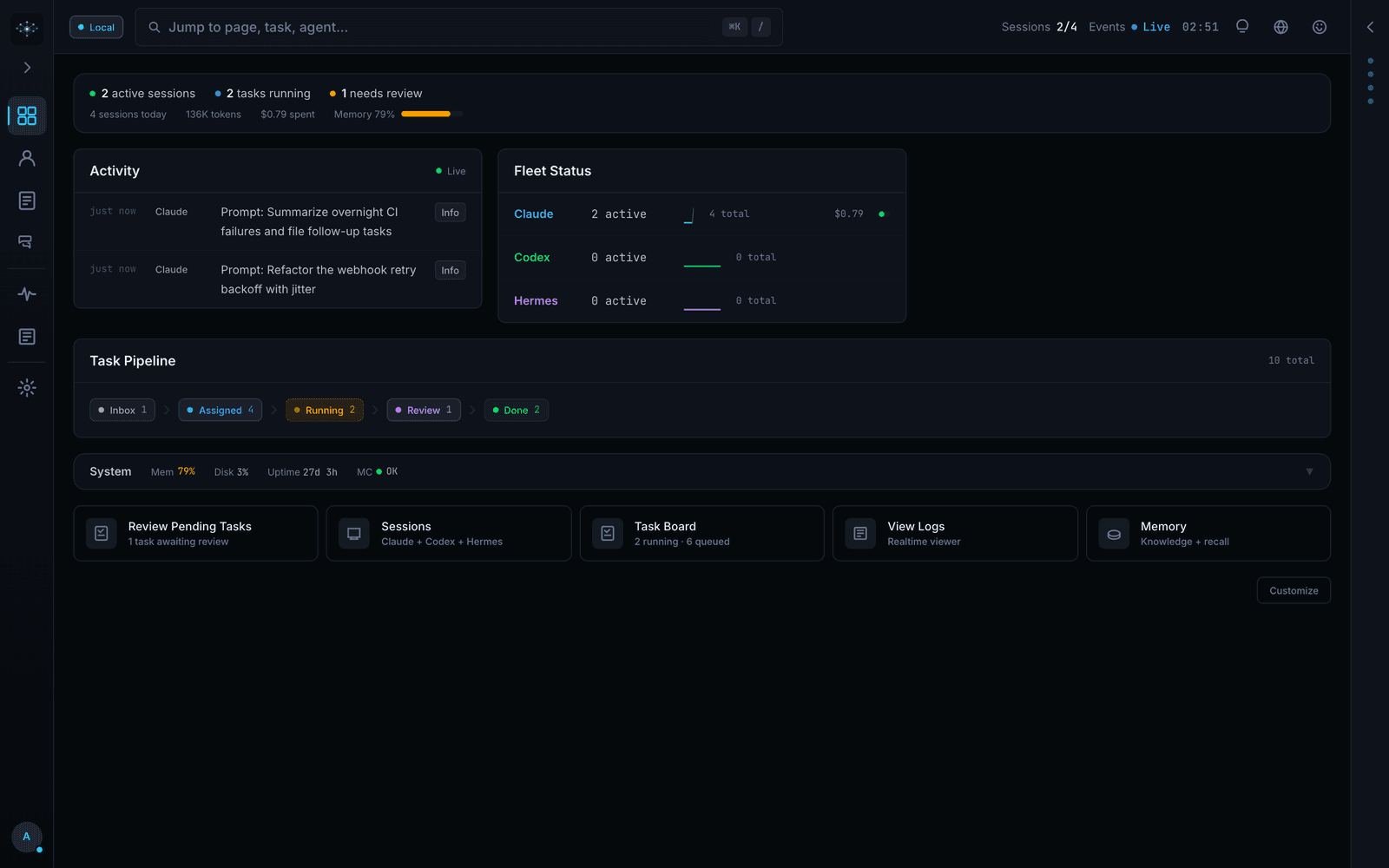
What I would borrow: put stalled or reviewable work close to the activity that explains it. A stream of events becomes useful when it leads to a decision.
Reference 02 / Goals and responsibility
Paperclip
Paperclip organises agent work around goals, tasks, organisational roles, budgets and governance. Its repository screenshot places agent runs above summaries of work, spending and approvals.
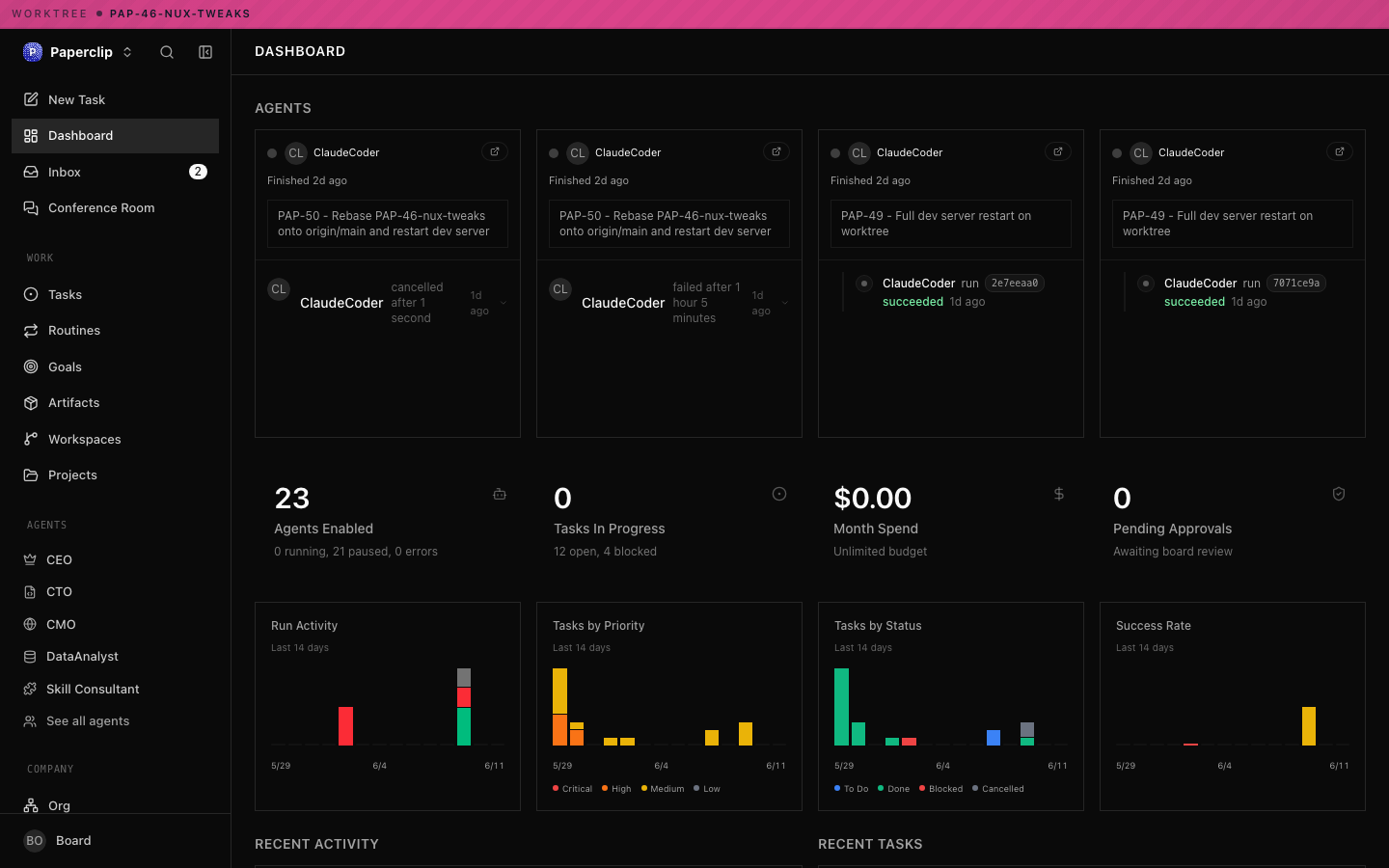
What I would borrow: make responsibility and review visible. For my own system, the useful question is whether a piece of agent work advances a chosen goal and needs a human decision.
Reference 03 / Work moving through stages
Autensa / Mission Control
The crshdn/mission-control repository now introduces the project as Autensa. It describes a product workflow from research and ideas through building, testing, review and pull requests. The repository’s Mission Control screenshot shows an earlier board-style interface, with agents on one side and an activity feed on the other.
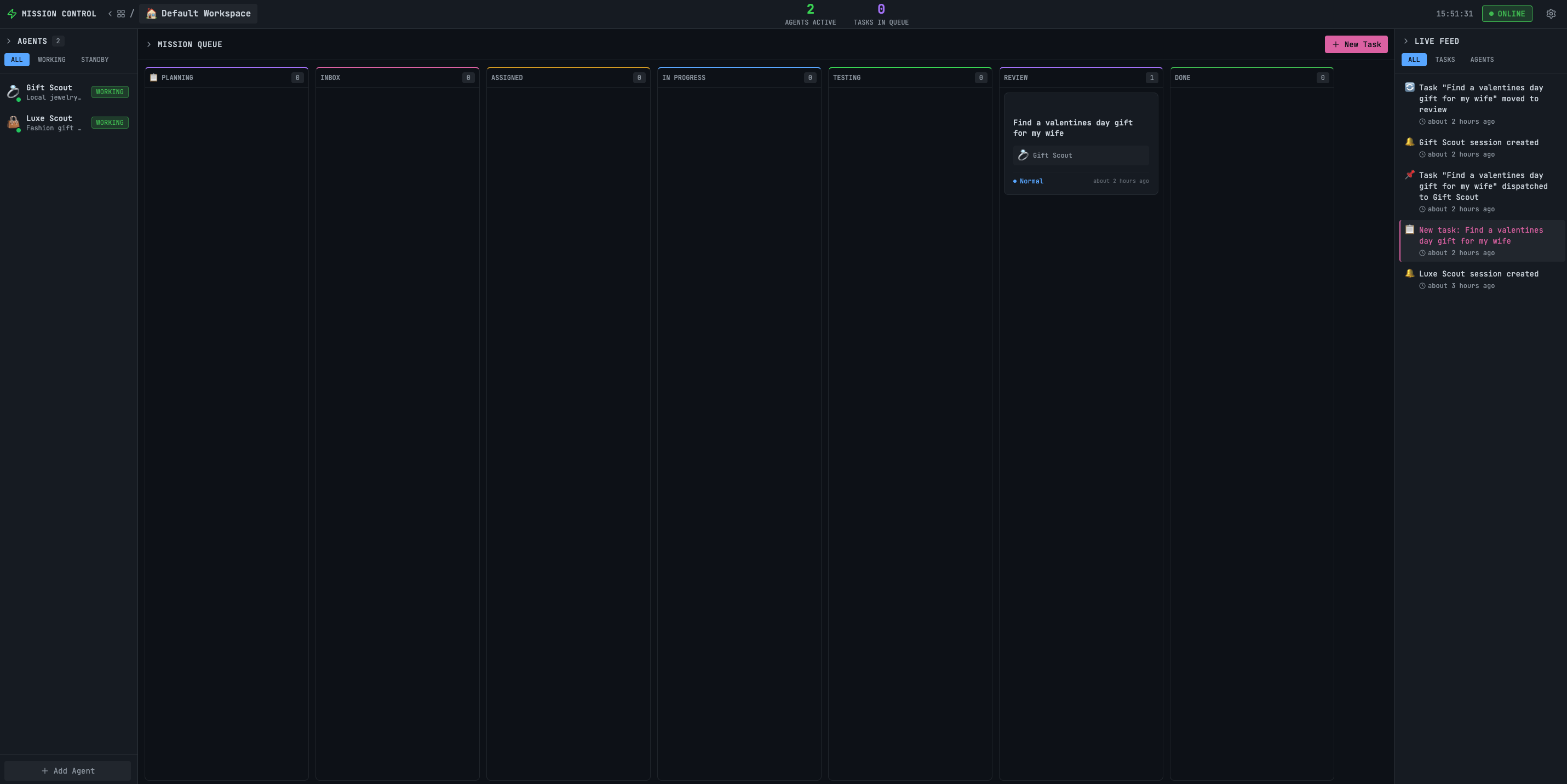
What I would borrow: separate “the AI produced something” from “someone checked it” and “the result was accepted.” Those are distinct moments in a real workflow.
The shared lesson is visibility. These projects focus on operating agents. My Command Center also needs to help me orient myself across knowledge, methods and current priorities. I would choose features around that daily job, rather than copy the largest interface.
05 / What belongs in it
Give every element a reason to exist.
The five AIOS layers help organise the underlying system. The front page should translate them into questions a person can act on.
| Layer | What to surface | Why it earns its place |
|---|---|---|
| Constitution | Direction and a short permission boundary. | Reminds you what the work serves and where the AI must stop. |
| Memory | Links to current projects and useful source material. | Helps you reach the context without retelling the whole story. |
| Skills | A small set of relevant methods, with readiness stated. | Shows how to do the work and whether the method has been tried. |
| Tools | Connections needed for current work and their checked state. | Distinguishes an available tool from an account that actually works. |
| Focus | Chosen outcomes, next actions and waiting decisions. | Keeps the interface anchored to what matters now. |
Across all five, make room for source, last checked time and uncertainty. “Not checked” is useful information. “Connected” is too vague when a tool can read but cannot write, or when access was last tested months ago.
Keep the home screen selective. A full inventory can live one click deeper. I want the first screen to answer: What matters? What needs me? Where do I go?
06 / Build step by step
Start small enough to use tomorrow.
Choose one recurring situation.
For example: starting your workday, preparing a meeting, or reviewing a project. Write one sentence describing what a successful visit to the page helps you do.
Map what already exists.
List the relevant sources and their real homes. Ask your AI to inspect only the files you choose. Label each finding as observed, inferred, missing from the chosen scope, or proposed. Folder presence alone cannot prove that a workflow works.
Agree the questions before the layout.
Begin with three: What result matters now? What context do we need? What needs a human decision? Your answers should shape the page.
Build a private first version.
A simple HTML snapshot or a view inside your existing workspace is enough. Use fictional content for a shareable demo. Keep real client, financial and personal records in their intended private homes.
Trace one task from start to finish.
Open a project, find its evidence, prepare a useful output, review it, and save the accepted result in the right place. Read it back. A displayed draft and a saved outcome are different checks.
Use it, then remove or improve.
Notice the moments when you leave the page to hunt for something. Add what repeatedly helps. Remove what you admire but never use. Automate a refresh only after you know the source and the cost of keeping it current.
A good first version can be read-only. Once it helps you find and understand the work, add one carefully scoped action. Keep the authoritative task or project record in one place.
07 / Mistakes to avoid
Where Command Centers go wrong.
| The mistake | A practical correction |
|---|---|
| Designing everything before doing one useful task. | Build the smallest view that helps with a recurring piece of work. Let the next real use reveal what is missing. |
| Showing “healthy” without a definition. | Name the check, its scope and its date. Separate planned, configured, tested and accepted states. |
| Creating another place to maintain the same tasks. | Choose one authoritative source. Read from it, link to it, and verify any write returns there. |
| Filling the home screen with agent activity. | Prioritise decisions, exceptions and useful outputs. Move detailed logs into a drill-down view. |
| Sharing a screenshot of a private system. | Create a separate fictional example. Inspect the rendered page and its embedded data before publishing. |
| Adding connections because they are available. | Connect the minimum needed for a chosen workflow. Show what access is actually verified. |
| Assuming a copyable skill installs everywhere. | Follow the chosen tool’s supported method. A chat may read instructions without installing a persistent skill or unpacking its resources. |
| Letting a beautiful snapshot quietly go stale. | Label it as a snapshot, or define who refreshes each source. Staleness should be visible before it influences a decision. |
08 / What I would improve
The next features I care about.
After that trial, these are the additions I would consider. They are ideas to test in my own system.
A source trail behind every important card.
Open the evidence behind a recommendation: which source was read, what it supports, and what still depends on an assumption. In the Vale Studio demo, follow Harbor Health from the roadmap to its project tasks and the Maker–Checker review.
A view of what changed.
Since my last visit, which priority moved, which decision was accepted, and which connection stopped working? A short meaningful change list could help more than another status counter.
Questions that unblock the system.
A short queue of decisions only I can make, each with enough context to answer. The AI should ask when the answer would change the next action, rather than turn onboarding into a long survey.
A freshness and permission view.
Show what was checked recently, what needs rechecking, and what the AI may read, draft or change. An unknown state should stay visible until a real check resolves it.
The improvement I want to see in my own process is modest: less time searching, fewer repeated explanations, and a clearer path from an idea to an accepted result. Those are worth observing before adding more automation.
09 / A starting prompt
Start with one decision you make often.
Copy the request into your own AI and choose which source files it can inspect. Open the method or download the ZIP below if your AI cannot read the GitHub link.
Help me design the first useful Command Center for my AIOS. Start with one recurring decision I need to make.

Read the DASHBOARD7 method:
https://github.com/arete-aios/aios/blob/main/skills/dashboard7/SKILL.md
If you cannot open the link, ask me for the DASHBOARD7 ZIP or SKILL.md.

Read only the source files I choose. Ask up to three questions about the decision, the sources I already have and what needs my approval. Distinguish what the files prove from what is still unknown.

Propose three small views: Today, Work and Decisions. For each item show its source, current status and next action. Walk me through one example. Tell me what source I can change to verify that the view reflects the change. If I have no AIOS yet, show a planned example and point me to the public starter.

Wait for my approval before editing files, connecting accounts or publishing anything.
Palīdzi man izveidot pirmo noderīgo vadības centru manai AIOS. Sāc ar vienu lēmumu, kas man darbā regulāri jāpieņem.

Izlasi DASHBOARD7 metodi:
https://github.com/arete-aios/aios/blob/main/skills/dashboard7/SKILL.md
Ja saiti nevari atvērt, palūdz man DASHBOARD7 ZIP vai SKILL.md failu.

Lasi tikai tos avotus, kurus izvēlos. Uzdod līdz trim jautājumiem par lēmumu, esošajiem avotiem un to, kam vajadzīgs mans apstiprinājums. Nošķir failos pārbaudīto no tā, kas vēl nav zināms.

Piedāvā trīs mazus skatus: Šodien, Darbi un Lēmumi. Katram ierakstam parādi avotu, stāvokli un nākamo darbību. Izved mani cauri vienam piemēram. Pasaki, ko varu mainīt avotā, lai pārbaudītu, vai izmaiņa parādās panelī. Ja man vēl nav AIOS, parādi plānotu piemēru un norādi publisko sākuma komplektu.

Pirms failu labošanas, kontu pieslēgšanas vai publicēšanas sagaidi manu apstiprinājumu.
10 / Resources & sources
Make it yours.
Your first Command Center can be much smaller than mine. Start with one result you care about, the context needed to move it forward, and the decisions that need your attention.
DASHBOARD7 / Public method
Use the files behind the method.
Read the skill on GitHub or download its instructions and supporting files. If you are starting from an empty folder, use the public AIOS starter first.
For a guided build, open My Circle Build: English or latviski. The APP guide offers a planner for members.
For another practical experiment, see the Video Lab in the APP: video-model outputs compared on shared tasks, with prompts, results and cost notes.
What would make this useful for you? Try the smallest version, then tell me what you could not find, what helped, and what you would change. That feedback will shape the next revision.
Sources and image credits
Primary project sources inspected 5 November 2026. Project descriptions are their maintainers’ stated scope; the design lessons are my interpretation. Screenshots are repository-published examples, not evidence of our own installations or current production behaviour.
- Builderz Labs / Mission Control — README and overview screenshot. Self-hosted agent operations; repository labels the software alpha.
- Paperclip — README and public development screenshot. Agent work, goals, budgets and governance.
- Autensa / crshdn Mission Control — README and earlier interface screenshot. Product-oriented agent workflow; older branding is identified in the figure.
Project screenshots retain their original content and branding. MIT copyright and licence notices · Font notices. No affiliation or endorsement is implied.